Bybit provides two types of records for your past trading activities: Trade History and Order History. These features allow you to clearly track all executed trades, cancelled orders, fees, and more. Whenever you place an order or execute a trade, you can easily find the corresponding record through these two sections.
Difference between Trade History and Order History
How to View my Trade History
How to View my Order History
How to View Cancelled Orders
Differences between Trade History and Order History
Your Order History records everything that happens to your orders – whether they are filled, partially filled, unfilled, or cancelled. When looking at your order history, each record will be given an Order ID. It is a unique identifier for each order placed by a trader.
On the other hand, your Trade History only records the parts of your order that were actually executed (filled). Each record will be given a Transaction ID (or trade ID) that refers to the unique identifier for an actual executed trade or position transaction.
As it is possible that one order may be matched with several counterparties at different prices or times, if multiple trades were required to fill a unique order, you will be able to see the multiple trades records in your Trade History, each with a unique Transaction ID, while the order history will only show the record for the unique order placed, with only one Order ID.
How to view my Trade History
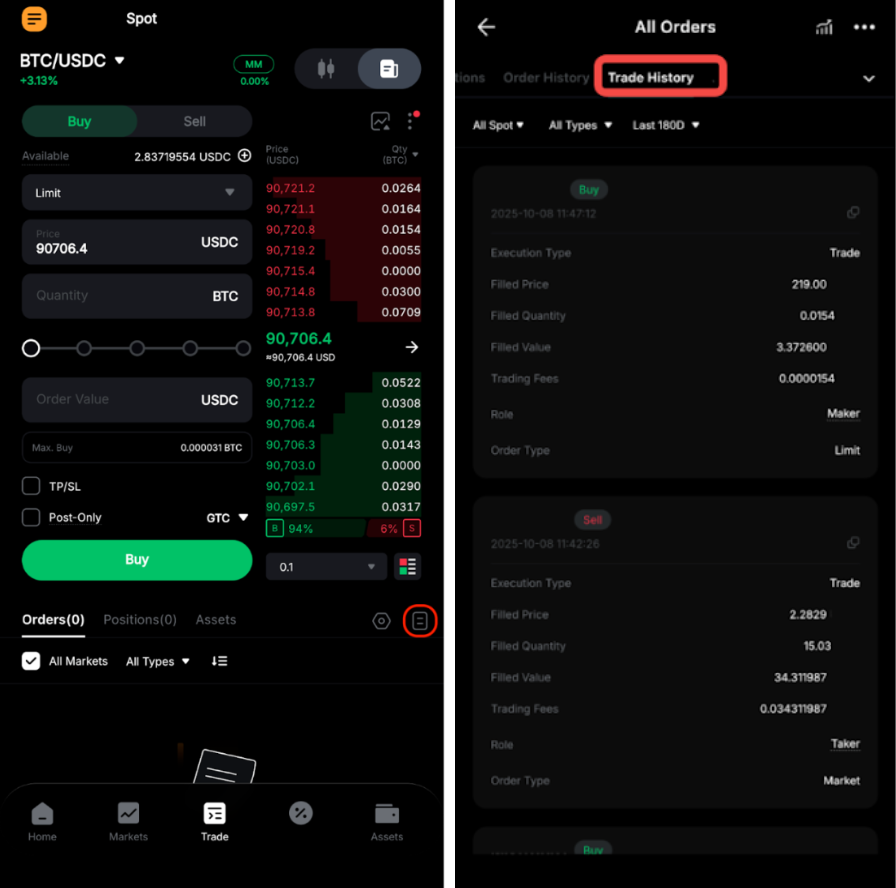
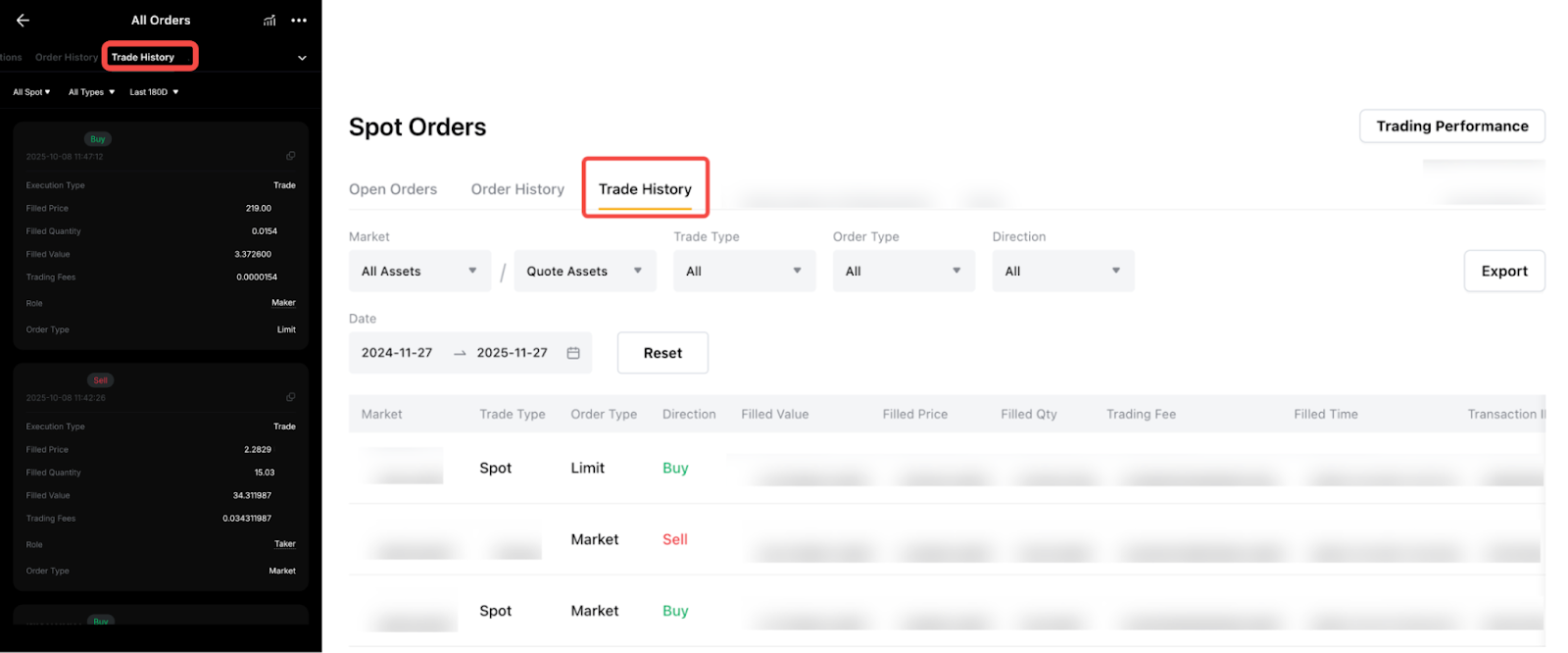
On the App: Go to the Trade page and tap on the History icon in the top right corner of the position box to view all your records. Then, select the Trade History tab.
There, you will be able to filter the records by market type, trade or order type, and date to locate the specific record you need quickly.
On the Website: Go to the Unified Trading Order page and click on Trade History to view all your records.
There, you will be able to filter the records by Market (All Assets & Quote Assets), Trade Type, Order Type, Direction or Status to locate the specific record you need quickly.
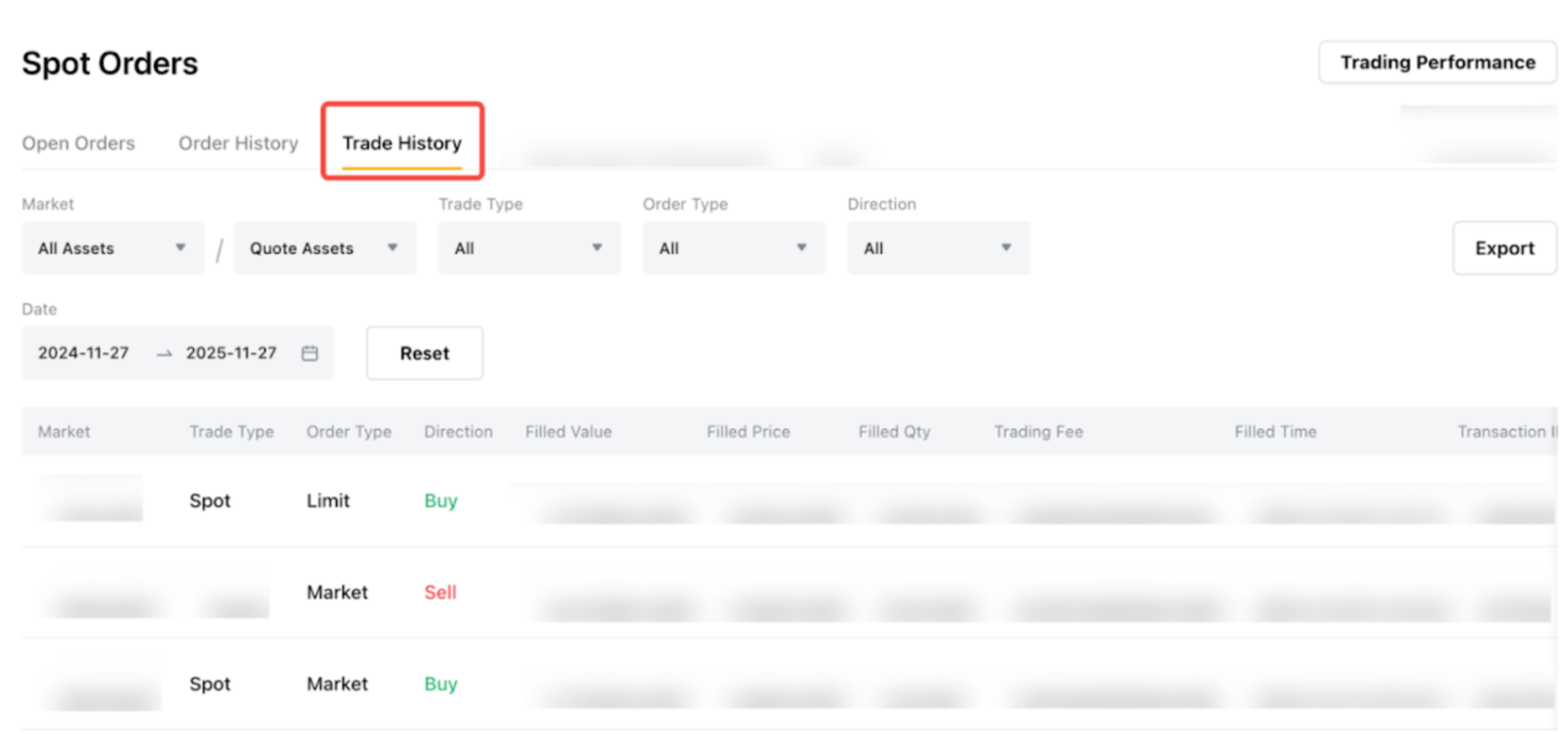
The Trade History page shows information related only to executed orders. For each trade, you will be able to find its:
- Execution and Order Type: The type of order placed (e.g., limit, market) and how it was executed.
- Filled Price and Quantity: The actual price at which the trade was executed and the amount of the asset traded.
- Filled Value: The total value of the executed trade (calculated as: Price x Quantity).
- Trading Fees: The fee charged by Bybit for executing the trade.
- Filled Time: The exact time when the trade was executed.
- Transaction ID: A unique identifier for the specific trade transaction. The Transaction ID can be also be found in the Trade History.

- Order ID: A unique identifier for the order that led to the trade execution.
How to view your Order History
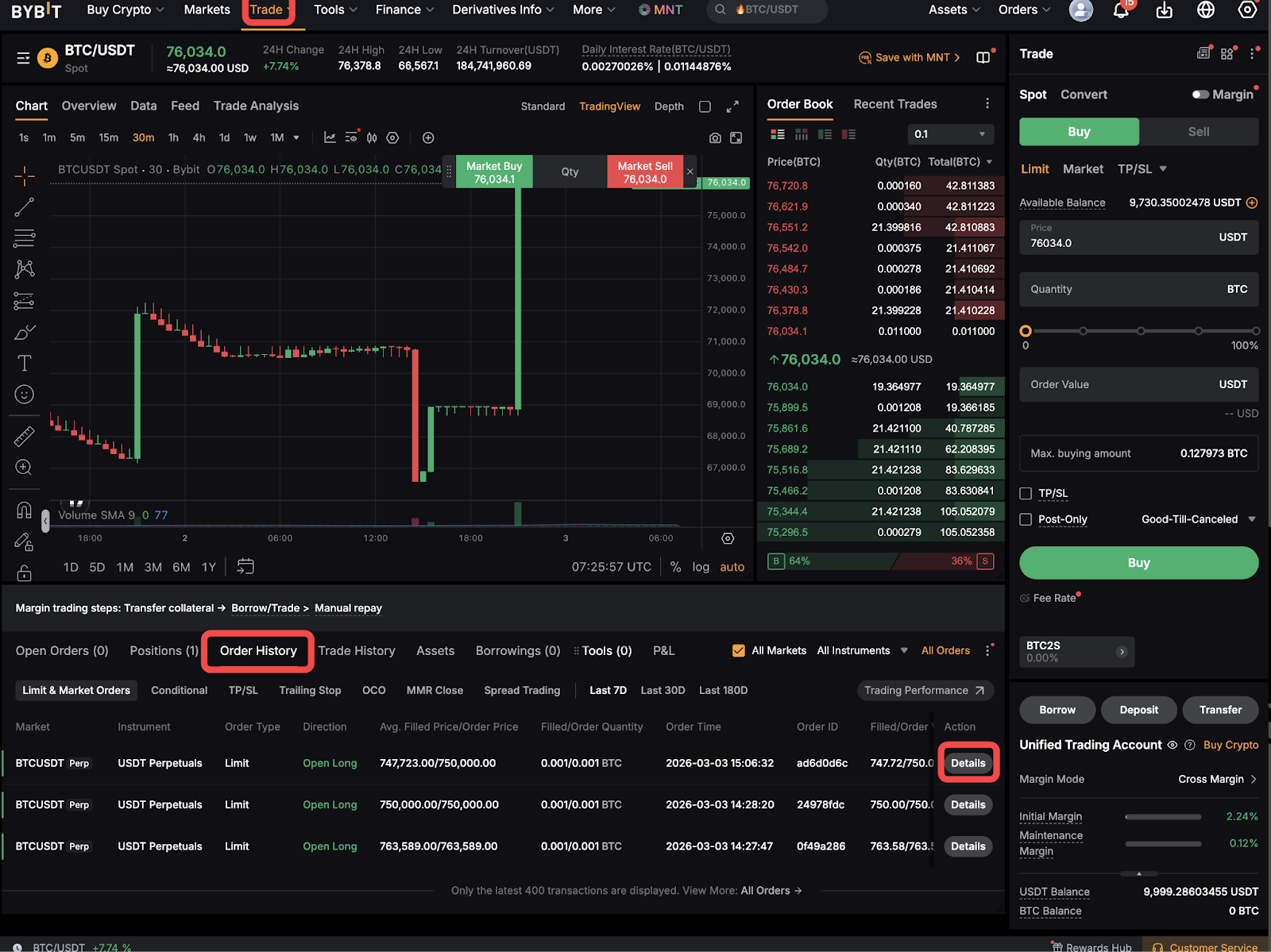
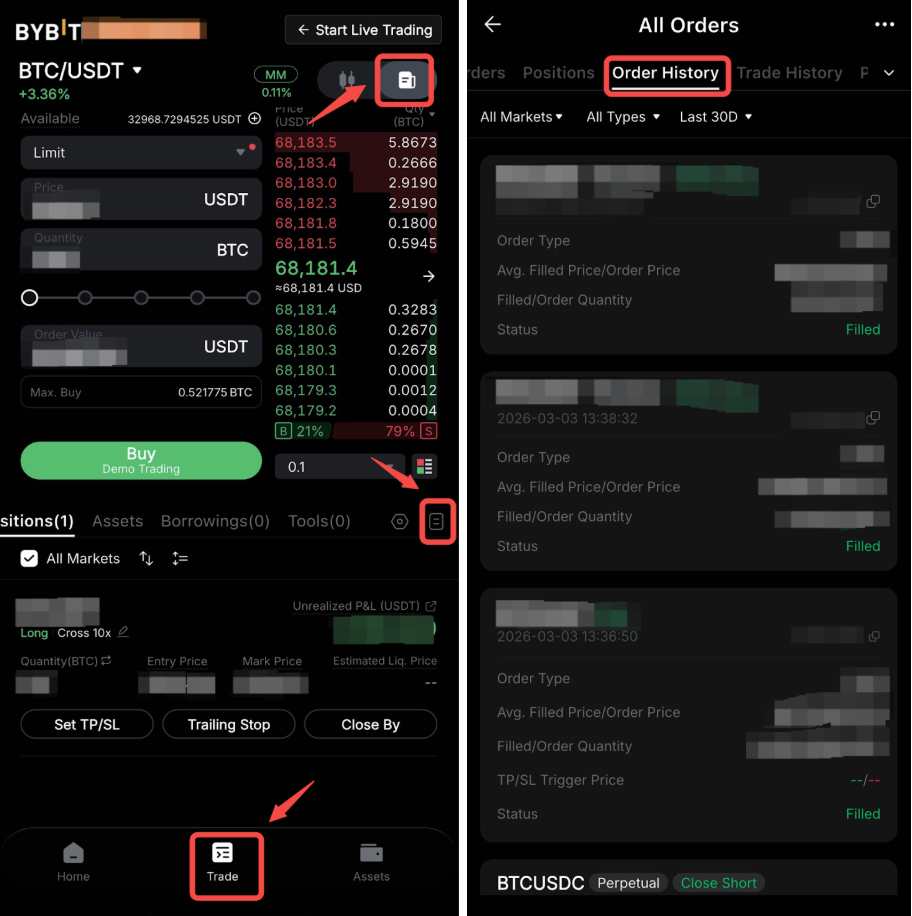
On the App: Go to the Trade page and tap on the History icon in the top right corner of the position box to view all your records. Then, select the Order History tab.
There, you will be able to filter the records by market type, trade or order type, and date to locate the specific record you need quickly.
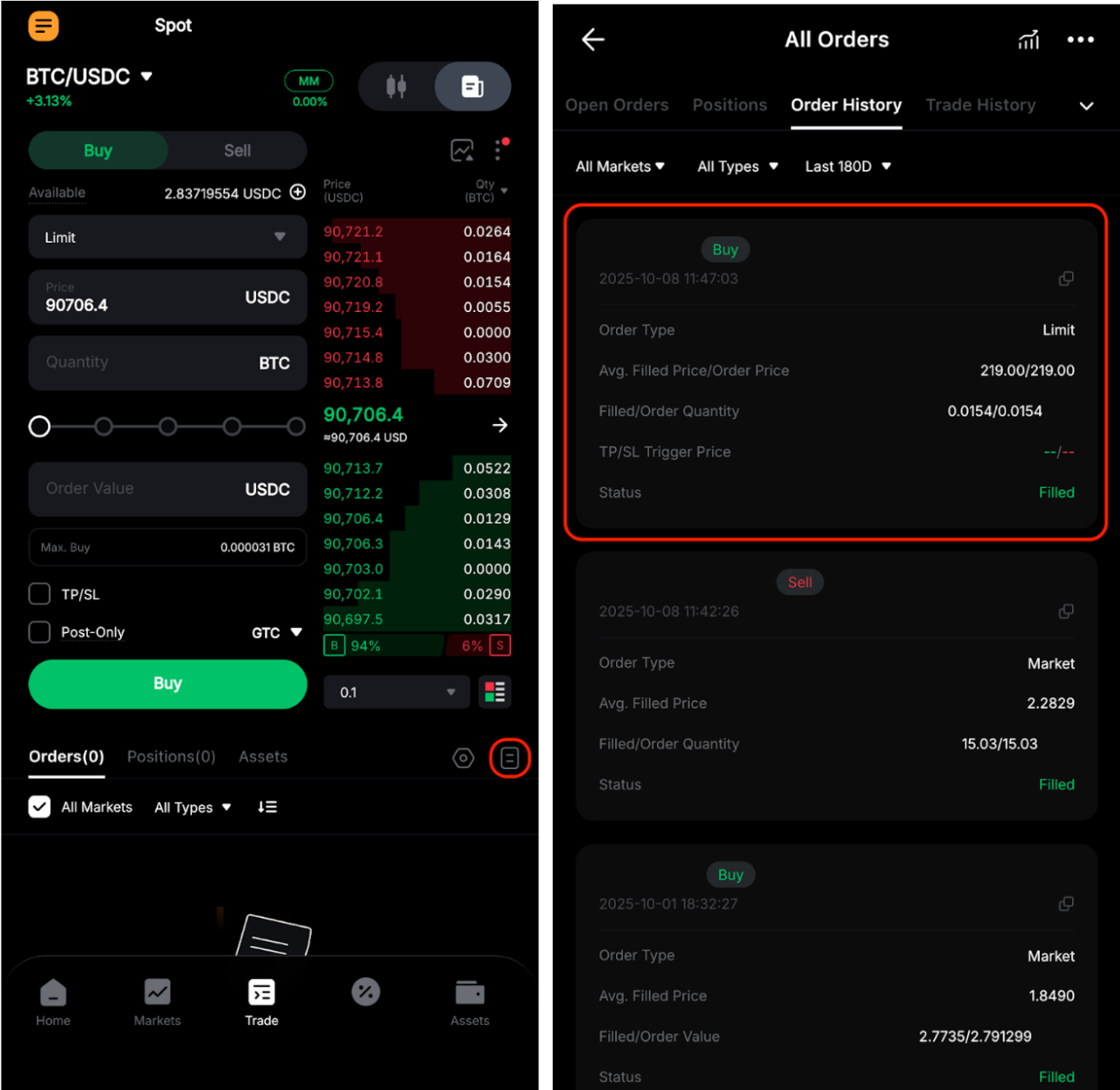
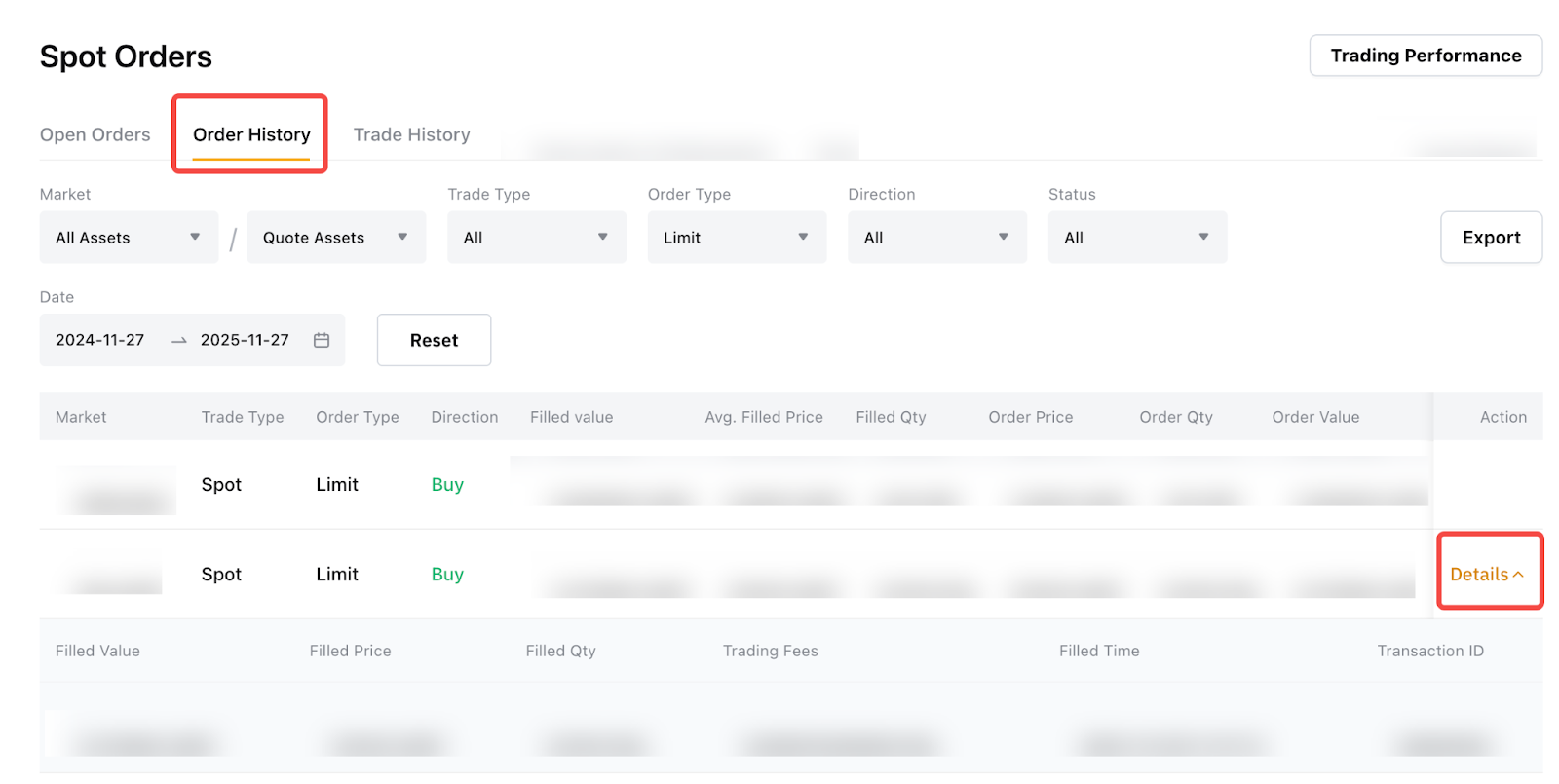
On the Website: Go to the Unified Trading Order page and click on Order History to view all your records.
There, you will be able to filter the records by Market (All Assets & Quote Assets), Trade Type, Order Type, Direction or Status to locate the specific record you need quickly.
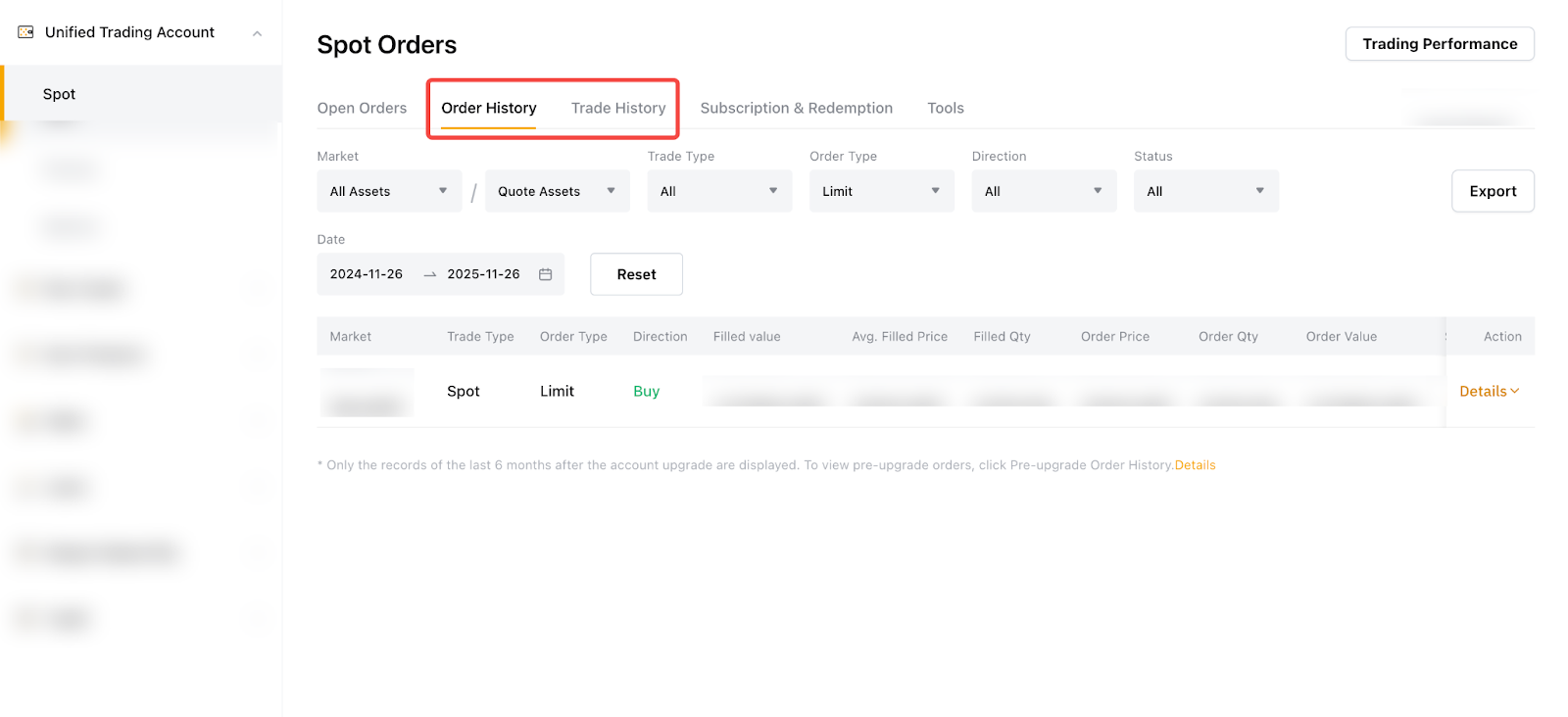
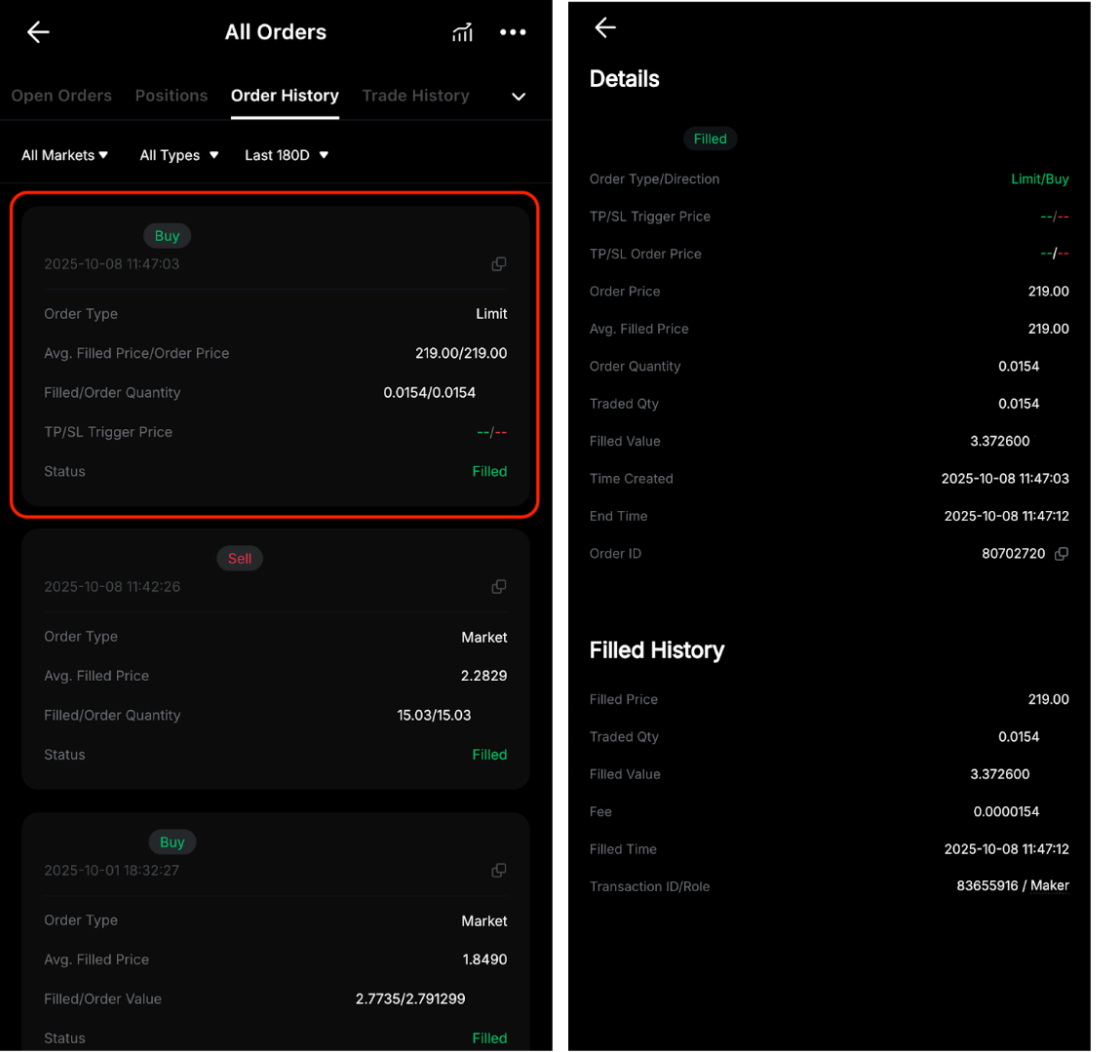
The Order History page provides a complete overview of all order-related activities. By selecting an order, you can view comprehensive details such as:
- Status: The current state of the order (e.g., filled, partially filled, canceled).
- Order Type and Direction: The type of order (e.g., limit, market) and whether it is a buy or sell order.
- TP/SL information: Details about Take Profit (TP) and Stop Loss (SL) settings, including TP/SL Trigger and TP/SL Order Price.
- Order Price and Quantity: The price at which the order was placed and the quantity of the asset.
- Averaged Filled Price: The average price at which the order was executed.
- Traded Quantity: The amount of the asset that has been traded.
- Filled Value: The total value of the filled portion of the order.
- Created Time: The timestamp when the order was created.
- End Time: The timestamp when the order was completed or canceled.
- Order ID: A unique identifier for the order, which can be found in the order details section.

Additional execution related information, including the Filled Price, Traded Quantity, Filled Value, Fee, Filled Time and Transaction ID/Role, is also available within the same section or can be viewed by clicking Details in the Action column.
How to View Cancelled Orders
You can view your cancelled orders by navigating to the Order History section on the trading interface. There, you can filter your order history to show cancelled orders.